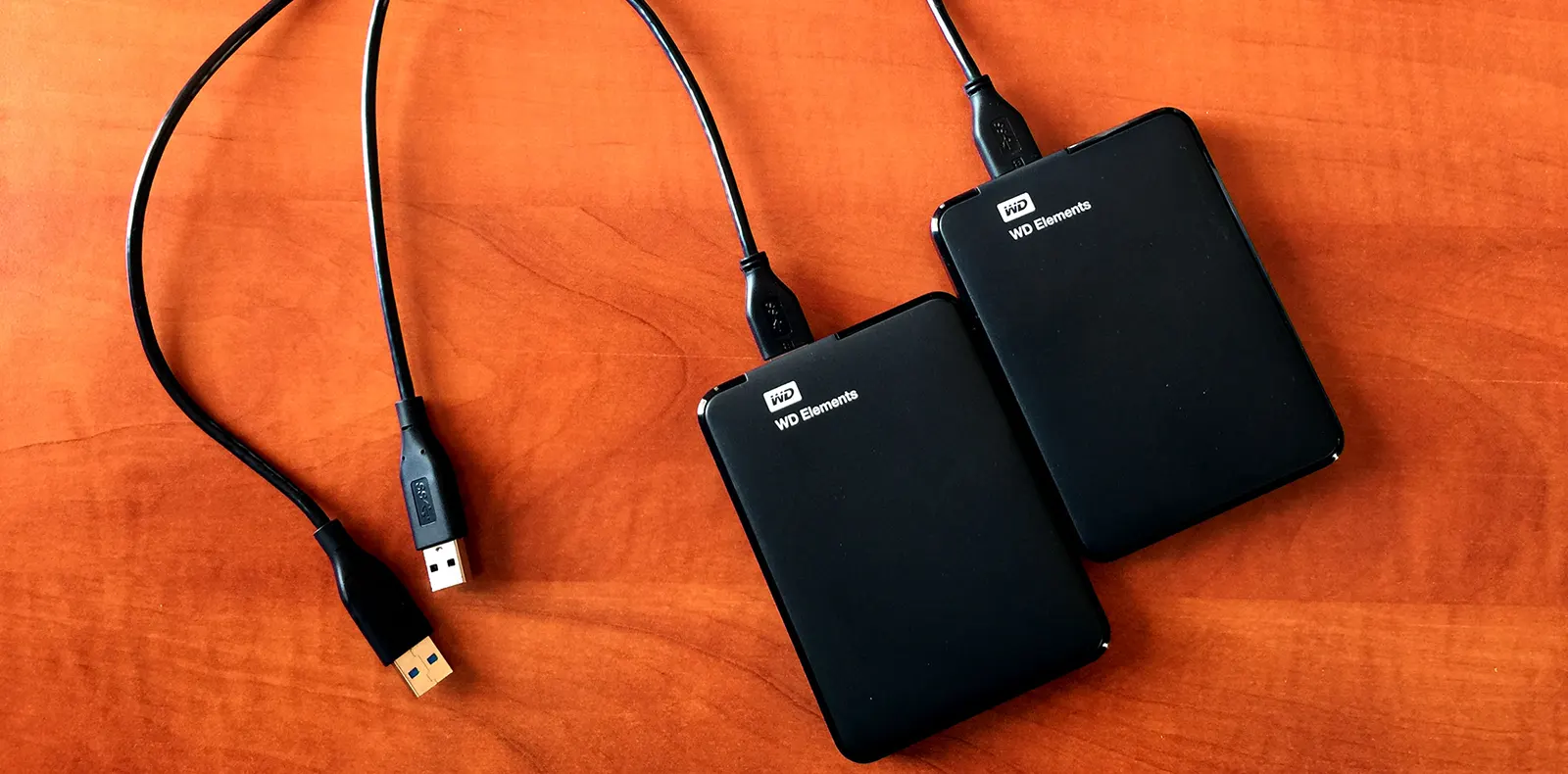
The people close to me know very well how obsessive I am about backups. I'd like to share my experience with ChronoSync and a practical way of backing up.
ChronoSync
As someone who has been burned before, I've used many different backup programs and devices over the years. Right now I back up every Mac at home to a Time Capsule, and I keep a second copy on a portable drive at work. For my photo and video archive, which is priceless to me, I use a different method: I copy the archive automatically to two portable drives using ChronoSync. In this post I'll explain this method, since it's both affordable and practical.
Why Keep Photos and Videos on a Portable Drive?
As technology has advanced, camera sensors have been upgraded to deliver much higher resolutions. And with the RAW format offered by DSLR cameras, each photo that used to be 1–2 MB now takes up around 22–23 MB. With no film or developing costs, I don't hold back, and I can come back from a day trip with 300–400 shots — roughly 8 GB of data for a single day of shooting. Not to mention the high-resolution videos I shoot.
My photo archive has now reached 140 GB and my video archive 200 GB. I can't store that much data on my MacBook, which has an SSD of just 256 GB. On the other hand, keeping the archive on the iMac at home means it isn't portable. When I share photos and videos with friends and family, I don't want to depend on the iMac at home. That leaves a portable drive as the most practical solution for storing this kind of media.
Which Portable Drive?
Honestly, any of the major brands is fine for me. Most drives from different brands contain disks made by a handful of manufacturers you could count on one hand anyway. When I need to choose, I go for whatever is on sale at the electronics stores. Right now you can find a 1 TB, USB 3.0, 2.5″ portable drive for around 150–180 TL. Considering 2 TB models are also on the market, this size seems perfectly adequate.
Where Should the Backup Go?
My strategy is to buy two of the same drive, carry one with me all the time, and keep the other, synced with the first, in a place I trust (home or work). That way I can be sure my data is safe and secure. Carrying it on a single drive is a big risk; for theft, disk failure, viruses, fire and so on, two drives that mirror each other and are kept in two different places seem like the most practical solution.
But isn't constantly copying from drive to drive a hassle?
This is where ChronoSync comes in — software I paid a fair amount for, but which I feel has paid for itself. ChronoSync only runs on Macs, but there are similar programs for Windows too. Here's what ChronoSync does: you set it up once, and then whenever the conditions you define are met, it syncs your data according to the rules you've set.
Let me explain more clearly. I bought two hard drives and labeled one the Master Disk and the other the Copy.
I write all my data to the Master disk. I save new photos to a folder on the Master Disk. As soon as I plug the Copy disk into the computer, ChronoSync kicks in and starts transferring the "new" data from the Master Disk directly to the Copy. You can do two-way synchronization, one-way backup, 1:1 copying and more. You can also schedule the sync to start automatically (start every Tuesday at 3:00 a.m., etc.), or set it to start automatically as soon as the computer sees both drives. Since it only copies changed or new files during a sync, the process is much shorter than a full backup.
What happens if I delete a folder from the Master Disk?
In that case your sync settings decide what happens. You can have files deleted from the Master Disk automatically deleted from the Copy, keep them, or move them to a separate "Deleted" folder on the Copy. The sync rules are incredibly detailed; you can set things up with many parameters, such as which file types to copy, copy / don't copy files starting with a certain letter, only consider files above or below a certain size, copy files newer or older than a certain modified date.
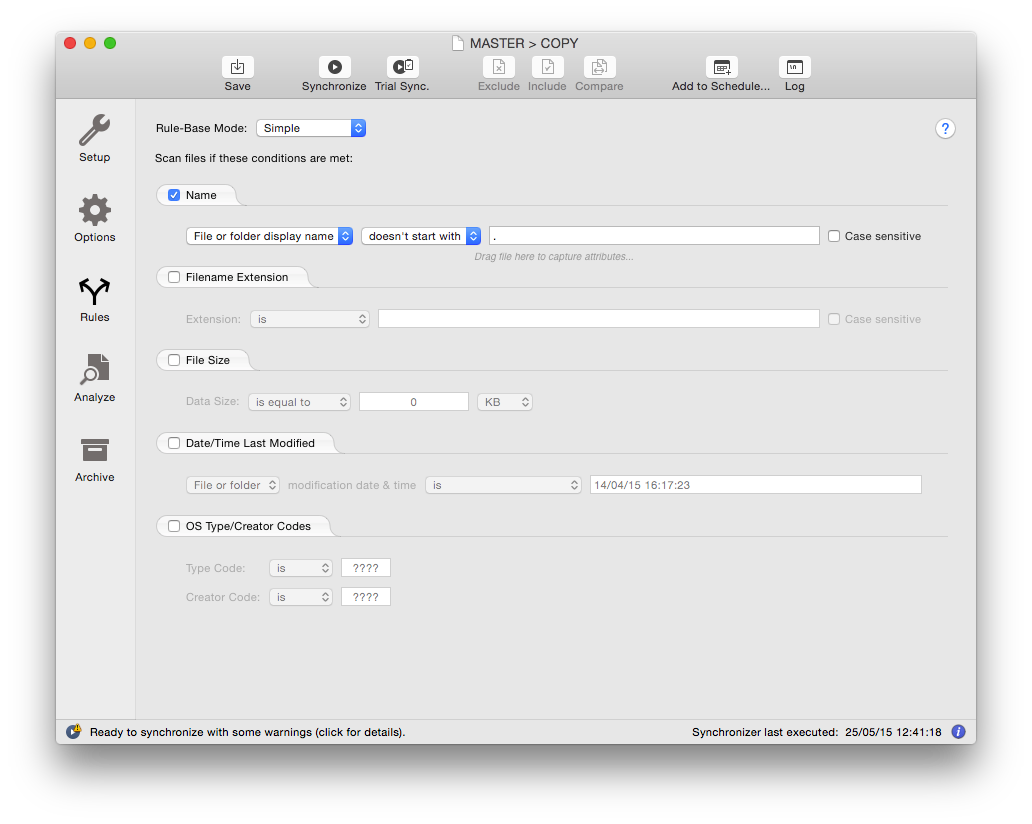
Analyze Before You Sync
Another ChronoSync feature is that before starting a copy, it can show you which files matching your rules will be copied. That way you can be sure before you start.
Does ChronoSync only copy between two drives?
Of course not. I sync the Master Disk and the Copy regularly and leave the Copy at work. When I get home and plug the Master Disk into my iMac, ChronoSync on the iMac kicks in and starts backing up to another drive on the network. If you like, you can quickly back up (sync) only files that match criteria that suit you, such as your email, the project files on your desktop or the PDFs in your proposals folder.
The beauty of syncing is this: say you copied a project file from your laptop to the Master Disk, and ChronoSync copied it to your iMac. If you now change the file on the iMac and sync again, the file on the Master Disk is updated too, and you can pick up where you left off on your laptop. Of course, for small Word files cloud services (Google Drive, Dropbox, etc.) are much more practical, but using cloud storage this way for a 15 GB film project isn't yet possible or sensible.
Conclusion
ChronoSync burns a hole in your pocket at a hefty 50 USD, but once you buy it you can run it on your other computers for personal use and upgrade to all future versions (not just updates — they offer free upgrades to new major versions too), and it stands out with a well-designed interface. Of course, you can find much cheaper (and even free) alternatives on the market that do similar work.
Two 1 TB drives, which you can buy for a budget of around 320 TL, are enough to keep your data in two different places and protect it from risks like disk failure and theft. Just don't overdo the external drives.
0 Comments
Leave a comment