If, like me, you used Windows for many years before switching to OS X, you probably keep discovering OS X's hidden practical features over time. Today's tip is about copying the folder path of an open Finder window into the "Open", "Save" or "Save As" dialogs.
In many of the apps I use during the day, I often use commands like "Open" and "Save", usually found under the File menu. As I mentioned in the previous post, consistent file naming goes hand in hand with a hierarchical folder structure. And so I don't save every file I work on to the desktop, I have to use lots of nested folders. For example, after working on a project file, saving it means climbing through a tree like this:
"Projects > Country Code > Customer > Project Name > Document Type", which takes 4–5 clicks to reach the right folder.
To make this simpler, try the following.
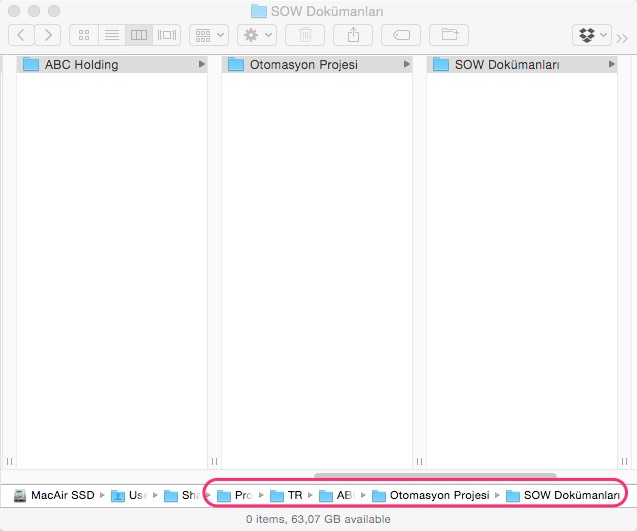
Open the folder you're working in, in a Finder window, and leave it open:
Let's say we want to save a document we prepared in Word to this folder. The Save dialog will look like this:
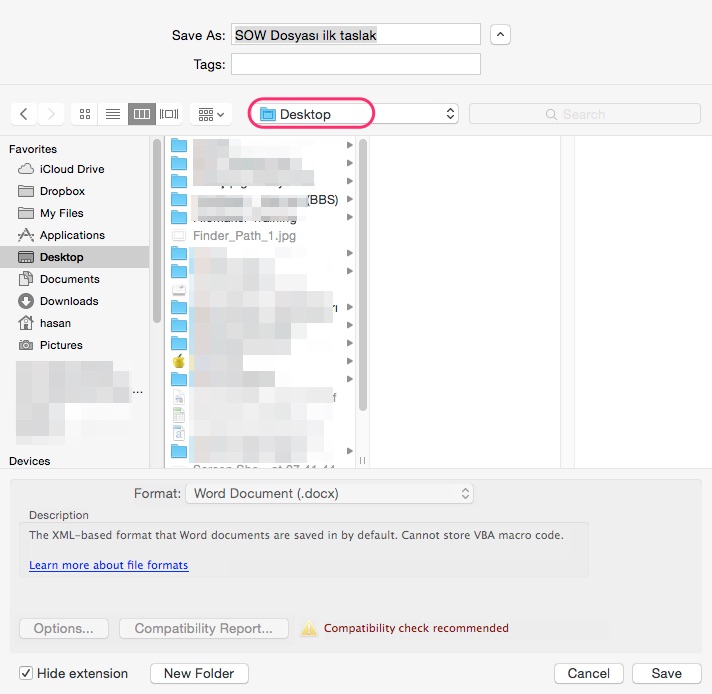
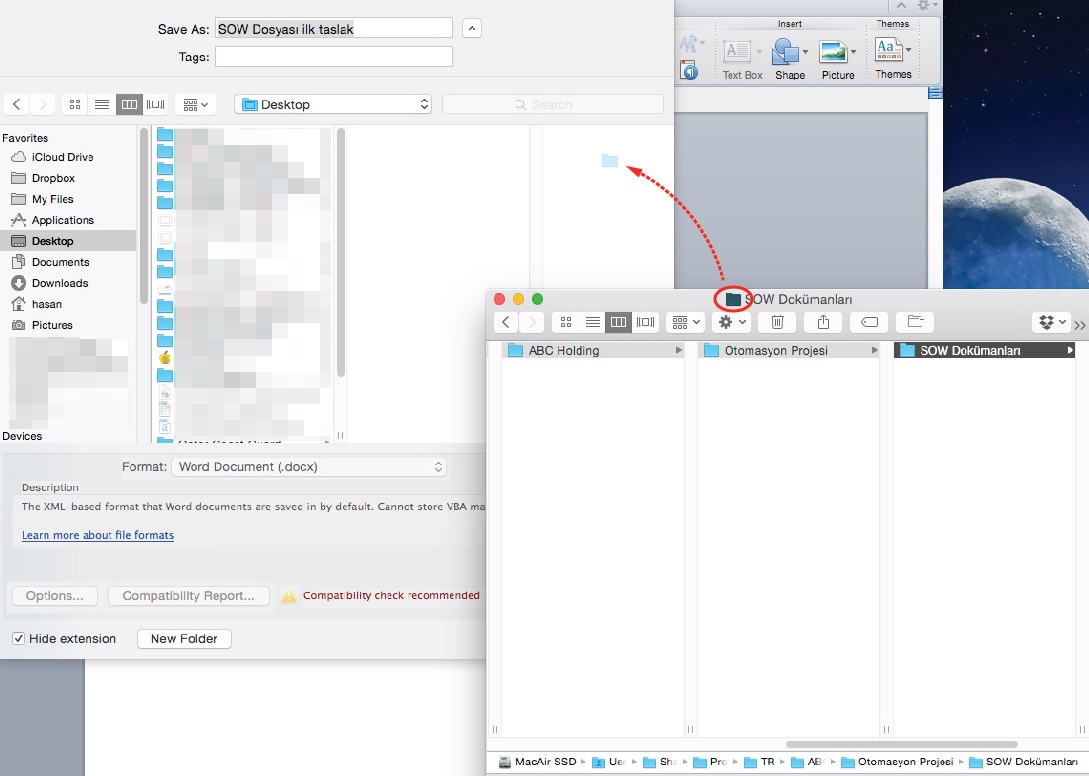
In the example above, the target folder is the Desktop. Next, instead of clicking through "Projects" > "TR" > "ABC Holding" > "Automation Project" > "SOW Documents" to save the file into the project folder, we drag the folder icon from the title bar of the project window open on our desktop and drop it onto the Save dialog.
You'll see that the Save dialog's target folder is now the Finder path you dragged:
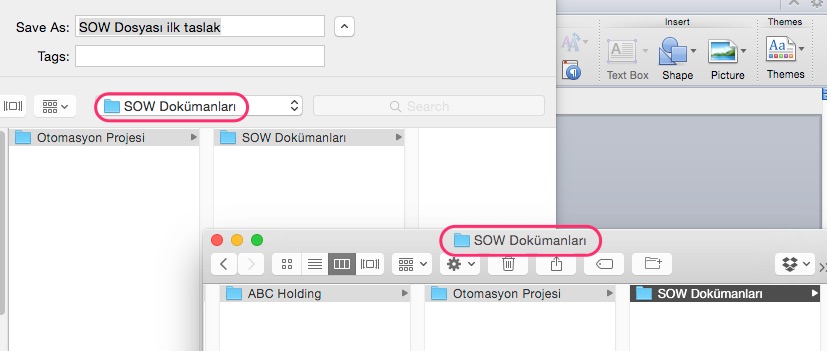
So by keeping the target folder open in Finder, you have a quick way to point to it whenever you save project files from Safari, Word or Keynote.
0 Comments
Leave a comment