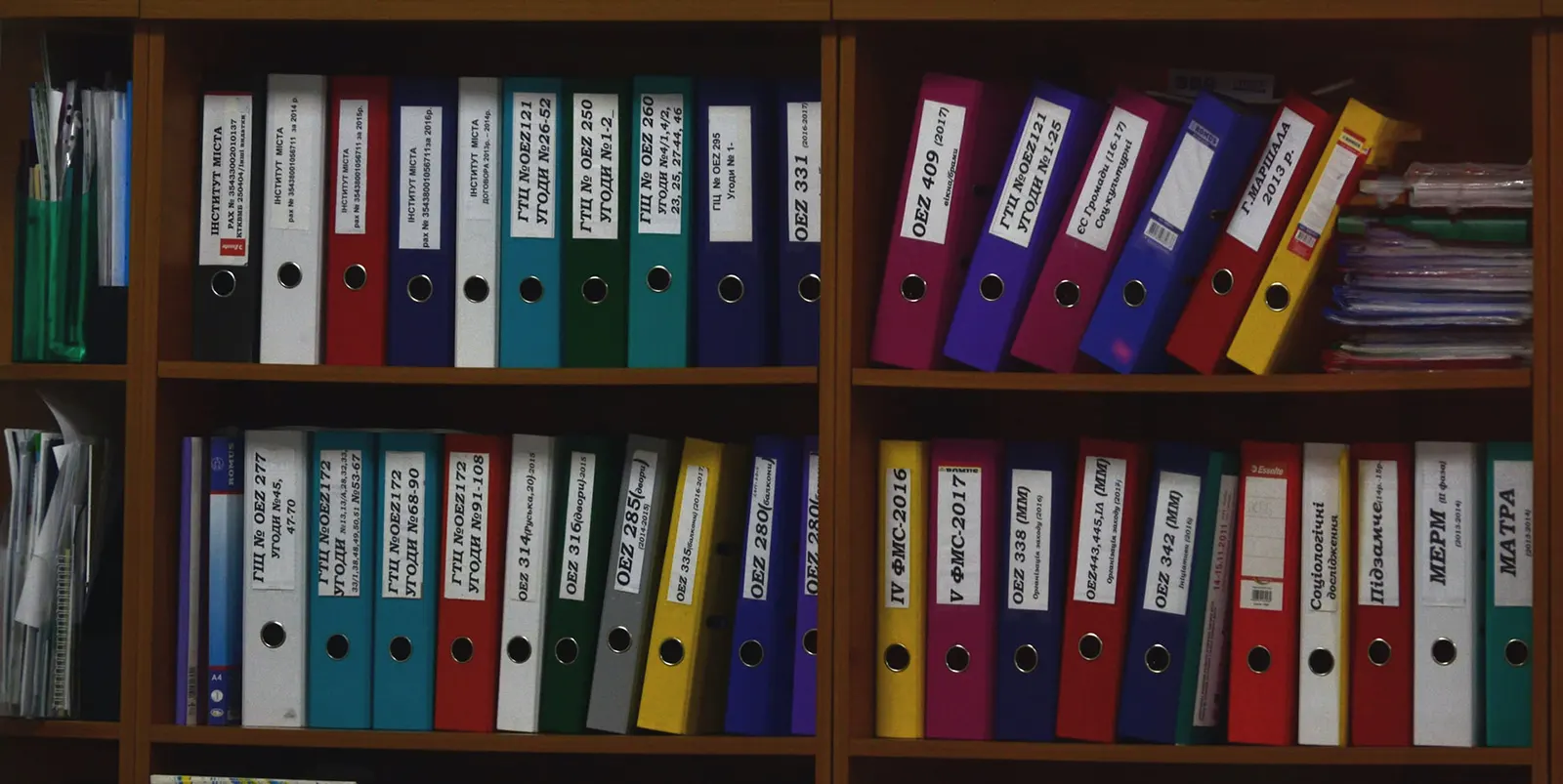
"I'll save it to the desktop and sort it out later"
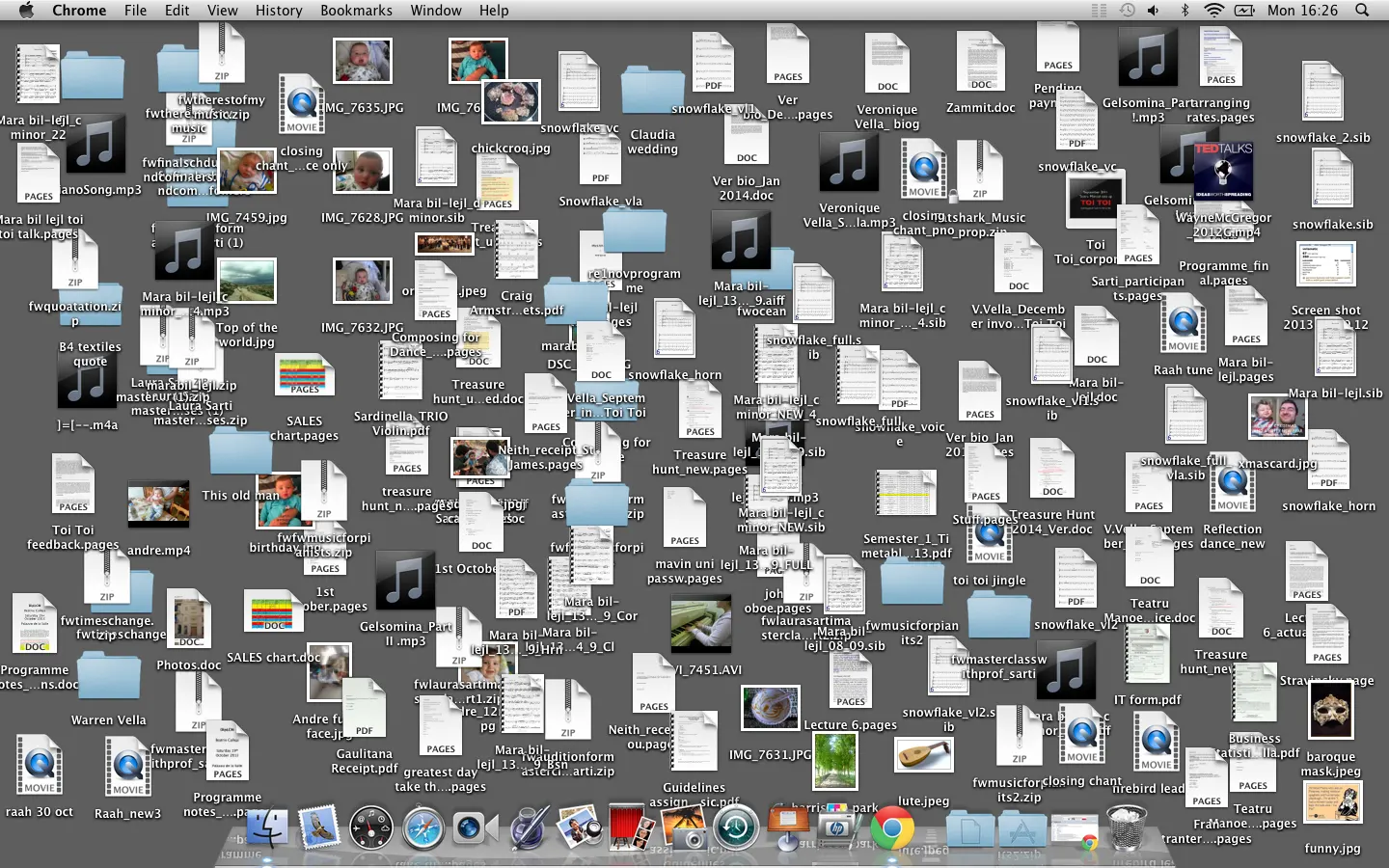
That line from the title is something I often tell myself while working on a project, presentation or proposal. Between images downloaded from the internet, Excel tables for the presentation, charts and quotes, my desktop ends up looking something like this:
Discipline and Order Are a Must
Today's operating systems come with very powerful search tools like Spotlight, but the easiest way to find what you're looking for is still to name your files consistently when you save them and to use a hierarchical folder structure. Once you settle into a certain discipline for naming files, you'll notice how much easier it is to find things.
Six Rules for Naming Files
1. Use File Names That Are "Long Enough" and Unique
Modern operating systems are quite generous with the number of characters allowed in a file name. I remember the MS-DOS years, when we had 8 characters for the name and 3 for the extension and ended up giving files odd abbreviations. Anyone else remember?
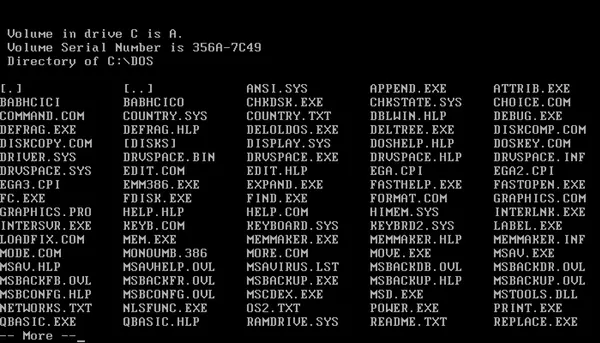
Newer file systems gave operating systems file names of 255–260 characters, and we could finally give files names and descriptions long enough to remember later.
So how should we use those 255 characters? The key is to think about "how you'll search for it later". Say you're working on a project proposal and saved it to your computer. A long time passes, the customer calls and asks you to update your latest proposal. What keywords would you search for?
"customer_name", "project name", "customer name proposal project name"? And what if the search results look like this:
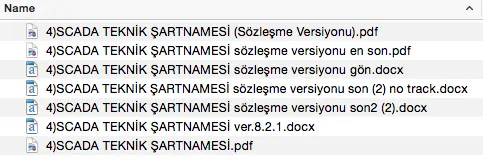
Then we start opening and closing files one by one, hunting for the latest version. In this post I'll go over some methods we can use when naming our files.
Create a template for yourself. Something like Customer Name + Project Name + Version No. You can also use codes for files you send to the customer or for compressed files.
Which one would you find more easily six months from now?
"SCADA TECHNICAL SPECIFICATION contract version final2 (2).docx"
"2014-05-21 ABC Holding – SCADA Technical Specification – v5.6 sent.docx"
2. Avoid Words Like "Final", "Latest" and "Current"
There's no end to "final". When I look at my old files months or even years later, I see lots of "final", "latest", "final final final" and "current" — but which one is actually the latest version? The modified date isn't very reliable either: sometimes I open the file before the "final" one to check something, accidentally save it on close, and its modified date changes right away.
3. Upper and Lower Case
I may be a bit obsessive about this, but when I list the files in a folder, names like the SCADA example above — some words in capitals (not counting abbreviations), some in lowercase — bother me. My preference is either all lowercase or the first letter of each word capitalized. Don't worry, we won't fix them one by one by hand; Automator comes to the rescue again, and I'll explain how in a later post!
Which is better?
"3) ABCHOLDING- xyzTechnology CONTRACT signature version.docx"
"3- ABC Holding – XYZ Technology Contract – v.3 signature.docx"
4. Use Version Numbers
The first time you save a file you're working on, add a suffix like "- v1". For later edits, save small changes as "-v1.1", or if a colleague is also working on the file, save the updated file they send you as "-v2.x". This will help you find what you're looking for later. The golden rule is to set your naming rules at the start and stick to them with discipline.
5. Special Characters
OS X allows more characters in file names than Windows does.
When naming a file on the Windows NTFS file system, you can't use these characters: / ? < > : * | "
On the OS X HFS+ file system, the basic rule is not to start a file name with a "." (dot) and not to use ":" in it.
Despite this flexibility, I'm not keen on special characters in file names and avoid them unless I have to. One exception: to avoid problems with files you'll upload to a web server, you can put "_" between the words of the file name.
6. Use Dates
When you save a file, the operating system already adds the created and modified dates to the file's properties, so why put a date in the name? If you put the date at the start of the file name, sorting by name makes the latest version much easier to find. I usually use the date the file was last saved. When adding a date, make sure you write it in line with the ISO 8601 standard, which makes sorting much easier: YEAR-MONTH-DAY.
Create Your Own Rules
The most basic rule in naming files is discipline: applying the same rules or code consistently. Use your own rules when naming files, for example "Date + a space + descriptive file name + " – " + version no + "-" file type code".
2014-11-24 MacTutkunu Blog File Naming Post – v1.1 – draft.docx
Don't forget to add the file extension! In another post I'll share the shortcuts and Automator workflows I use for naming files.
Have a good week,
Hasan
0 Comments
Leave a comment