Have you heard of Plex? If, like me, you enjoy watching films and series at home, and you want to keep your film collection organized in digital form and reach it from apps on your tablet and/or smart TV, Plex Media is made for the job. If I find the time, I'd like to write a detailed review of Plex, but for now anyone curious can learn more on the software's website.
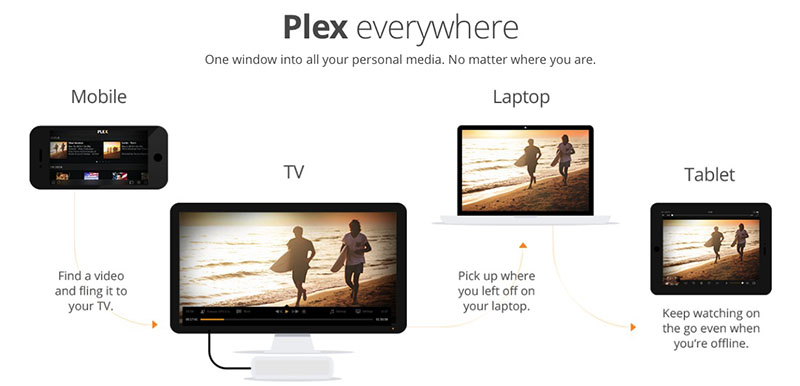
To summarize very briefly, with Plex you can:
- Automatically load credits and details for your film, video and series collection
- Automatically find DVD covers
- Automatically search for subtitles
- Reach your collection from smart TVs, tablets, phones and other devices
- Keep and organize your collection on a NAS (network storage device), if you have one
- Reach popular internet content such as TED, Vimeo, YouTube, Dailymotion and Apple Trailers through Plex channels
- Access the iPhoto, Aperture and iMovie libraries on computers in the same network and watch them on the living-room TV
- Reach your collection from devices that support DLNA.
I've been using Plex for about a year and a half and I'm quite happy with it. I used My Movies on Windows Media Center for a long time, but after switching to Apple I went looking for easy-to-use software that would work with the NAS at home, and that's how I found Plex. Everything was fine until last Saturday, when…
As the American businessman Bert Lance put it: "If it ain't broke, don't fix it."
Last Saturday evening I was about to watch a film. I opened Plex and saw a "new update" message. Without thinking twice I clicked "update", and the result: broken characters in Turkish subtitles! Sure, I can go back to the old version from a backup, but how can a feature that worked before be missing in the new version? I started digging through the Plex forums and found plenty of people with the same problem. On top of that, support for DVD ISO and VIDEO_TS, which the previous version had, was gone too. Anyway, my first problem was the Turkish characters, because letters like "ş", "ğ" and "ı" were showing up as strange symbols. I found a thread on the Plex forums (here), and the root of the problem is the character encoding of the subtitle files. Turkish subtitles usually use the Turkish character set encoded as ISO-8859-9, but even though I selected that character set in Plex Media Manager's settings, the result looked like this:

The Fix
In my research I found there were several ways to solve the problem. Some involve replacing the font set Plex Media uses with a Turkish one; others involve embedding the subtitles into the film. The most practical and sensible solution I found was to convert subtitles with the ISO-8859-9 character set to UTF-8. But say you have a whole series — changing the encoding of 100 episode subtitle files one by one would be a real chore. To avoid that, I thought of Mac OS's powerful but hidden weapon: "Automator". But can you change the character set with a command? I learned that in the Mac OS Terminal shell, "bash", you use the "iconv" command for this.
The command takes these parameters:
iconv [options] -f current_charset -t target_charset source_file > target_fileFor example, to convert an ISO-8859-9 encoded subtitle to UTF-8, we type this into the Terminal window:
iconv -f iso-8859-9 -t utf-8 "My_Film.srt" > "My_Film_UTF8.srt"When we run this command, the file is saved as UTF-8 under the name "My_Film_UTF8.srt" and displays without any problems in Plex.

Automating the Terminal Command with Automator
I'll admit I don't know much about Automator or AppleScript. On the other hand, with a bit of Googling you can find plenty of documentation and ready-made code for Automator.
When you first run Automator and create a new file, it asks you for the document type:
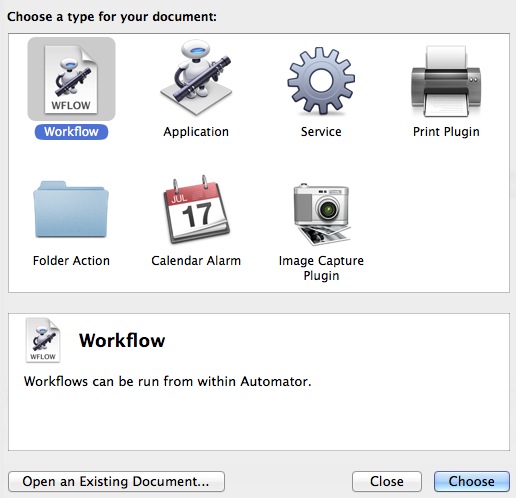
I chose "Workflow" here. You can reach the same result with "Application" or "Folder Action" too.
Type "Get Sp" into the search box on the left to filter the actions, then drag "Get Specified Finder Items" from the results into the workflow on the right. This action lets Automator process the files we select in Finder.
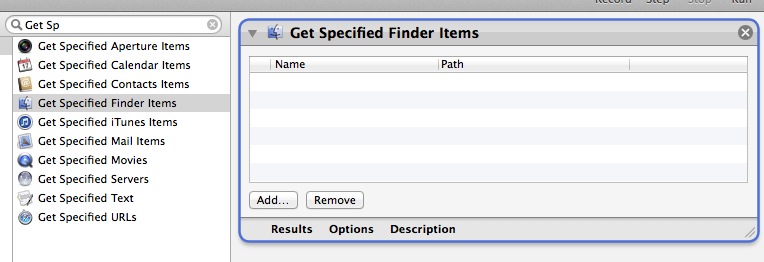
Next, we add a "Shell Script" as the second step. Just type "shell" into the search bar and add the only result, "Run Shell Script", below "Get Specified Finder Items".
In the "Run Shell Script" action, set "Pass Input" on the right to "as arguments". This passes the files selected in "Get Specified Finder Items" above as input to the code block below. The result should look like this:
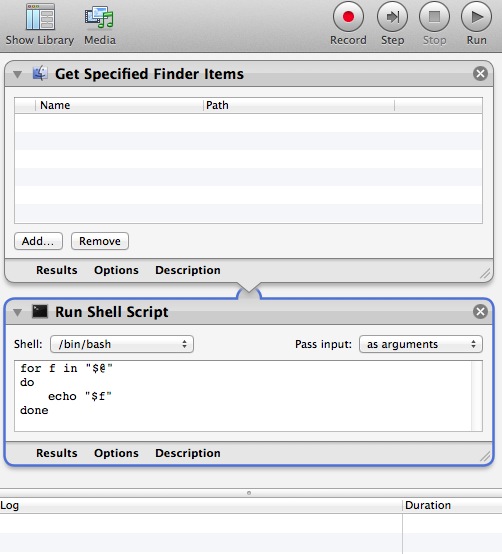
Now replace the code inside "Run Shell Script" with the following:
for y in "$@"
do
fullname=${y%.*}
iconv -f iso-8859-9 -t utf-8 "$y" > "$fullname.tr.srt"
done
In short, each file we select in Finder is assigned, one by one in a loop, to the variable "y". This variable holds the full file name, including the file's path. The "fullname" variable is the same name with the extension at the end (usually .srt or .sub) stripped off. You can find more about stripping the extension here. Thanks to this variable, our new UTF-8 file gets the same name as the old ISO-8859-9 file, but it's saved with the extension ".tr.srt". The special thing about ".tr.srt" is that when you choose that subtitle in Plex, it shows up as "Turkish" instead of "Unknown". If you don't name the file this way, the Turkish characters will still display correctly, but Plex will list the subtitle as "unknown".
Now we can use Automator. In the "Get Specified Finder Items" action, click "Add" at the bottom to choose your .srt subtitle files, then click "Run" at the top of Automator. Our little script runs and saves each file automatically in the same folder as the source file, with the ".tr.srt" extension.
Warning: Before running the script, I recommend backing up your files and trying it on a single folder before adding your whole collection. No responsibility is accepted for any problems that may arise from errors, omissions or information in this post.
0 Comments
Leave a comment