Anyone who keeps a film, series or music archive knows that an organized system is essential for finding what you want when you want it. The interface you use to browse that archive matters a lot too, and everyone has a routine they've shaped for themselves or grown used to.
When it comes to archiving films, one of the simplest methods is a hierarchical folder structure:

You can even add "genre" folders in between to make the classification more detailed, but then it becomes harder both to pick the right category while archiving and to list your films. Say you want to watch a comedy at the weekend: is it easier to open each year folder and read the film names inside, or to use software built for this job that shows film summaries and covers?
Speaking of film archive software, let me recommend a few I used on Windows: My Movies, DVD Profiler, Movie Collector and XBMC derivatives (e.g. Kodi). Browsing your film archive by DVD cover rather than through folders, and playing a film right away, is much more enjoyable:
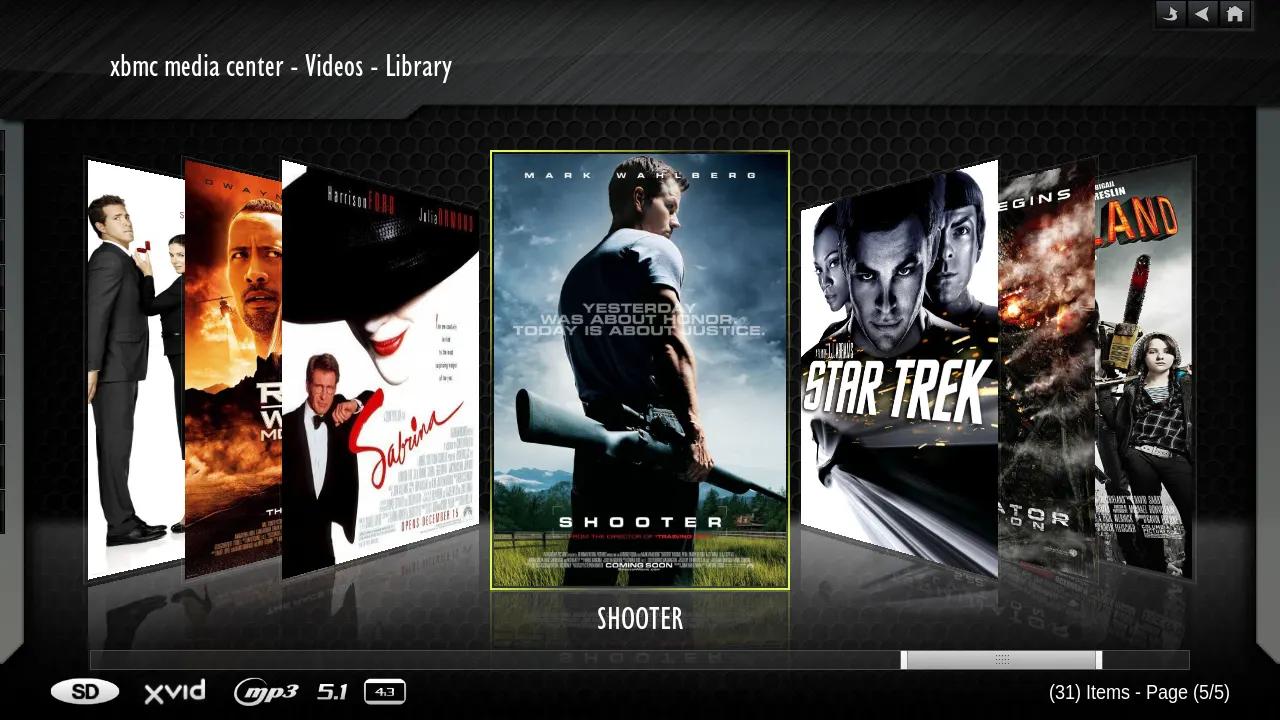
In the past, to add films to this kind of software you had to enter all the film's data (year, DVD cover, cast, summary and so on) by hand. Thanks to growing film databases, it's now possible to pull most of that data automatically from sites like IMDb and TMDb.
Without straying too far, let me talk about Plex, which I use on both Windows and OS X. I've written about Plex before. Besides films, Plex lets you archive series, music, personal videos and other media and play them all from a single interface. Archiving films is very simple: you just name the film file, or the folder it's in, in the format "FILM TITLE (RELEASE YEAR)". For example, if you have a video file named "The Matrix (1999).avi", or it sits in a folder called "The Matrix (1999)", Plex's scanner scans the folder you point it to, downloads all the details of the film from the internet and adds it to your library. In the end, a film for which you entered only the title and release year shows up with lots of detail, from the director and cast to the background art and DVD cover:
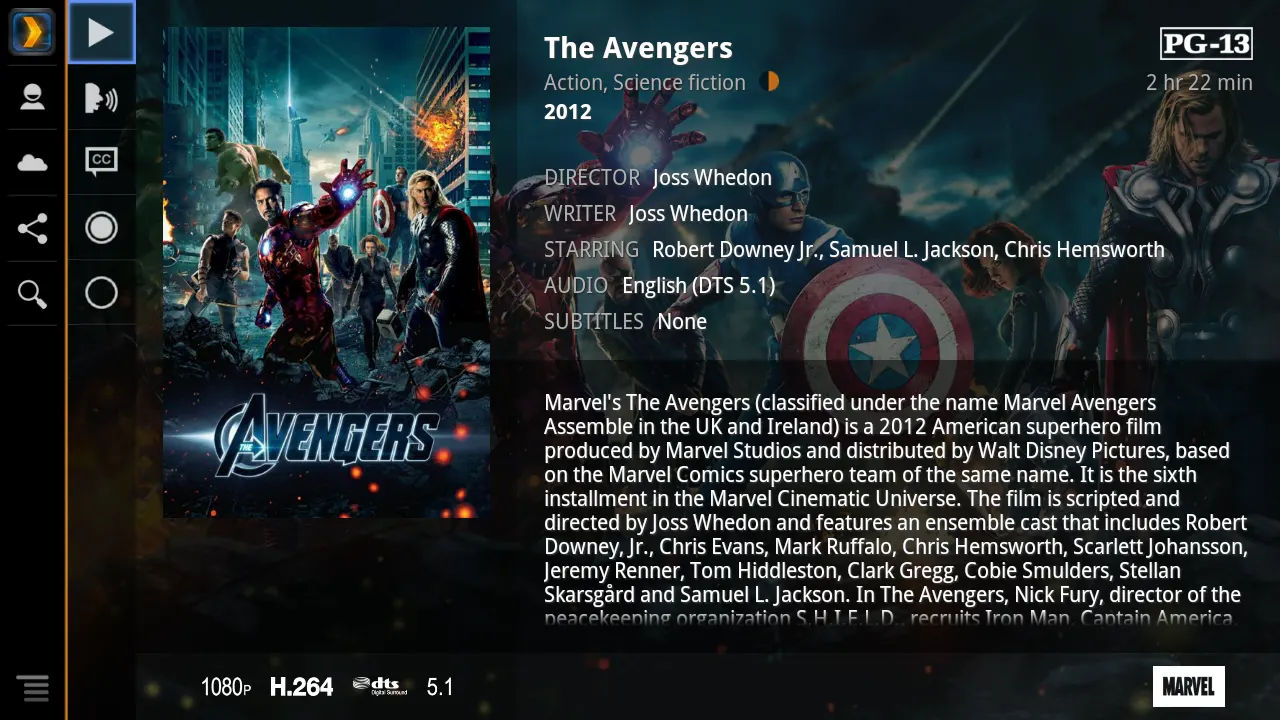
All you need to do is stick to the "film title (release year)" structure above when archiving your films. But say you have hundreds of disorganized films you want to add to Plex:
Dragon Ball.mov
Into the Storm.mp4
Capt America The Winter Soldier.avi
…
To do this, we have to select each film file, look the title up on IMDb, find the release year among the results and rename the file. Better still, if we create a new folder and put the film file and its subtitle into it, things get much tidier.
Isn't there an easier way to do this for hundreds of films? Of course there is: you can use apps written for exactly this. My recommendation is FileBot. It sells for 5 USD on the App Store, but you can also download it for free using the "OS X Package" link on its official download page. Today, though, let's see how a simple AppleScript can automate the "routine" work above.
What does this script do? It takes the film file and subtitle selected in Finder, searches for the film's title on IMDb, and pops up a window where you enter the year. When you enter the year you read on IMDb, the script renames the film and subtitle files accordingly, creates a new folder and moves the files into it.
tell application "Finder"
activate
set selectedList to selection
set theFolder to folder of item 1 of selectedList
set fileName to name of item 1 of selectedList
set filmTitle to (characters 1 thru -5) of fileName as text
set extension to (characters -4 thru end) of fileName
set newFolder to make new folder at theFolder with properties {name:filmTitle}
tell application "Safari" to open location "http://www.imdb.com/find?ref_=nv_sr_fn&q=" & filmTitle
end tell
tell application "Finder"
display dialog "Enter the film's year" default answer ""
set filmYear to text returned of result
set (name of item 1 of selectedList) to filmTitle & " (" & filmYear & ")" & extension
move selection to newFolder
set name of newFolder to filmTitle & " (" & filmYear & ")"
end tell
Note: I'm not a programmer, so it's probably possible to write this script much more efficiently or briefly. But since script performance isn't a priority for personal use, it should do the job, or you can adapt it to your needs.
Save this script as an Automator service and assign it a keyboard shortcut (see this post for an example of using AppleScript in Automator). Then select your film and its subtitle file in Finder and run the script:
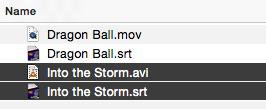
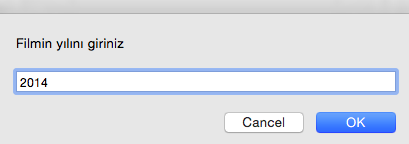
Your file name will be searched on IMDb in Safari, and you'll be asked to enter the film's year:
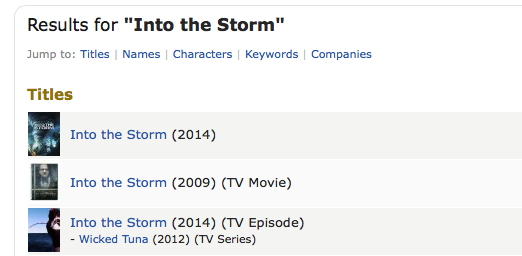
In this example our film appears to be from 2014. If we type "2014" into the window and click "OK":
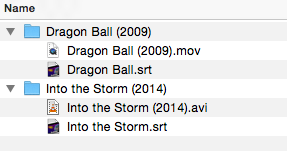
We see the film has been moved, together with the selected subtitle, into the newly created folder. The folder name also matches our "FILM TITLE (RELEASE YEAR)" format.
I didn't have time to work on the script in depth. It only searches IMDb for the name of the first file in the group selected in Finder, gives that name to a new folder, and appends the year entered by the user in parentheses. It also moves the selected files into the new folder. If you select more than one film, the script will move all the selected files into the same folder. I wrote the script above in about 15 minutes with the help of Google, and it saved me a lot of time while getting my messy films into Plex format. You can take it as a starting point to write your own script, or try improving this one.
Hope to see you in another post.
0 Comments
Leave a comment